
The short answer
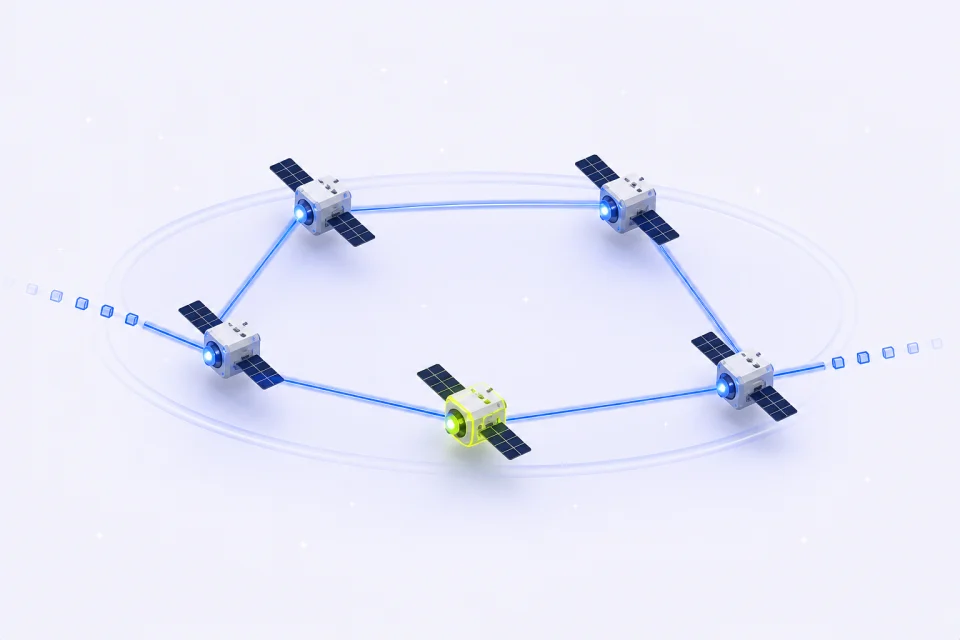
Rotating and sticky are two ways of using the same residential proxy pool. With rotating, every request leaves through a different IP. With sticky, a session keeps one IP for a period you choose, then lets it go.
Which one you need depends on whether the site has to see the same visitor across several requests. A product page you fetch once does not. A sign-in followed by three clicks inside an account does, because the site ties your session cookie to the address it saw at sign-in. If the IP changes halfway through, many sites log you out or ask you to verify again.
Rotating vs sticky at a glance
This is how the two session types work on IPMusk Rotating Residential. Other providers use different durations and setup steps, so check their documentation before you compare.
| Rotating | Sticky | |
|---|---|---|
| IP behaviour | A new IP on every request | The same IP for up to 1, 3, 10 or 30 minutes |
| Lines you need | One line is enough | One line per parallel session; each line has its own username |
| Good for | Price monitoring, public page collection, localization checks, one-off requests | Sign-ins, carts and checkouts, forms that span several pages, short tasks inside an account |
| Main risk | Breaks anything that relies on a session cookie | Too many requests on one IP in a short time; the IP can change before the timer ends |
| Billing | Traffic used, from the same GB package | Traffic used, from the same GB package |
| Location | Country, plus state or region where available | Country, plus state or region where available |
How rotating sessions work
A rotating line points at the residential gateway and asks for a fresh exit each time. You send request one and it goes out through one home connection. Request two goes through another. You do not manage a list of addresses; the gateway picks them.
Rotating is the usual choice for collecting public data. If you check the price of 2,000 products, spreading those requests across many addresses keeps any single one from sending an unusual amount of traffic to the same site. It also means a block on one address does not stop the job, since the next request uses a different one.
Since every request already gets a new IP, generating ten rotating lines gives you ten identical copies of the same configuration. On the IPMusk Connect page, one rotating line is all you need.
The weakness is anything with state. Cookies, carts, CSRF tokens and multi-step forms all assume the visitor stays the same. Run a sign-in through a rotating line and the login request and the next page request will arrive from different places. Some sites accept that; many do not.
How sticky sessions work
A sticky line carries a session ID in its username. Every request that uses the same line goes out through the same IP until the timer runs out. On IPMusk you choose 1, 3, 10 or 30 minutes. When the time is up, the next request on that line gets a new IP.
The duration is an upper limit. A residential exit is someone's home connection, and it can drop off the network before your timer ends. When that happens, the next request on the line comes from a different address. A script that depends on the same IP should check for that, for example by watching for a sudden sign-out, and start the step again on a fresh session.
If you run several tasks at once, give each one its own line. The Connect page generates as many sticky lines as you ask for, each with a different session ID, and the Get new IPs button replaces them all with fresh sessions. Changing the country, state, session type or duration also creates new sessions. Changing only the line format, protocol or quantity keeps the ones you already pasted elsewhere.
100 sticky lines are 100 configurations. They do not reserve 100 addresses, and a different exit IP is not promised for every line.
Which one to use for common tasks
- Price and stock monitoring: rotating. Each product page is a separate request and does not need a session.
- Search result and localization checks: rotating, with the country and, where offered, the state set to the market you are checking.
- Signing in and doing a few actions in an account: sticky. Ten minutes covers most short tasks; use 30 if the flow is long.
- Adding to cart and reaching checkout on a test order: sticky, so the cart and the checkout page see the same visitor.
- Paginated results behind a search form: sticky if the site stores the search in a session cookie, rotating if each page has its own URL that works without cookies.
- Accounts you sign in to every day for weeks: neither. Use a Static ISP address, which stays assigned to you for the whole 30 or 90 day term.
Choosing a sticky duration
Pick the shortest duration that covers the whole task, plus a little room. A sign-in and a quick check fits in 3 minutes. A form that takes a person five minutes to fill in needs 10. A browsing session in an antidetect browser profile might need 30.
A longer session has its own cost: every request on a sticky line hits the same address, so a long session with many requests piles your activity onto one IP. If your script fires hundreds of requests in a sticky session, that is usually a sign the work belongs on a rotating line, or should be split across several sticky lines.
If 30 minutes is not enough, the task probably needs a fixed address. Sticky sessions cannot bring back yesterday's IP, so anything that has to look the same tomorrow should run on Static ISP.
Does the session type change the cost?
No. Rotating and sticky draw from the same Rotating Residential traffic package, billed by the GB you transfer. A request costs the same amount of traffic whichever mode it uses. Each package is valid for 30 days, and traffic left over expires on the date shown in your dashboard.
Traffic depends on what you download. Heavy pages with images and scripts use far more traffic than a small JSON response. Blocking images and fetching only what you parse will stretch a package further than switching session types.
Setting it up on IPMusk
- 1Open Connect
In the dashboard, open the Rotating Residential Connect page. Your managed username and password are created after your first traffic package is delivered.
- 2Choose a location
Pick a country and, if you need it, a state or region. City, ASN, carrier and ZIP targeting are not offered.
- 3Choose the session type
Select Rotating for a new IP on every request, or Sticky and a duration of 1, 3, 10 or 30 minutes.
- 4Pick protocol and format
HTTP or SOCKS5, in the line format your tool expects. Set the quantity to the number of parallel sticky sessions you need.
- 5Test before you scale
Send a request to an IP-check site through one line. With rotating, two requests in a row should usually show different IPs; with sticky, they should show the same one.
When the IP does not behave as expected
- Several requests show the same IP: you are most likely on a sticky line. Switch to Rotating if you want a new IP every time.
- A sticky session changed IP early: the exit went offline before the timer ended. Start the task again on a new line.
- You get logged out after one or two pages: the task is running on a rotating line. Move it to a sticky one.
- The location looks slightly off: location follows IP geolocation, and lookup services do not always agree on states and regions.
The free proxy checker tests up to 20 HTTP or SOCKS5 proxies at once and shows each one's exit IP, country and network type, which is a quick way to see what your lines are doing.